
Chapter 6: What a rootfs actually is
After the kernel finishes initializing, it mounts a root filesystem and starts PID 1. That root filesystem — the rootfs — is just a directory tree on a...
After the kernel finishes initializing, it mounts a root filesystem and starts PID 1. That root filesystem — the rootfs — is just a directory tree on a disk. But it has to contain specific things in specific places, or the system doesn't work.
Why those things, and why those places? That's what this chapter is about.
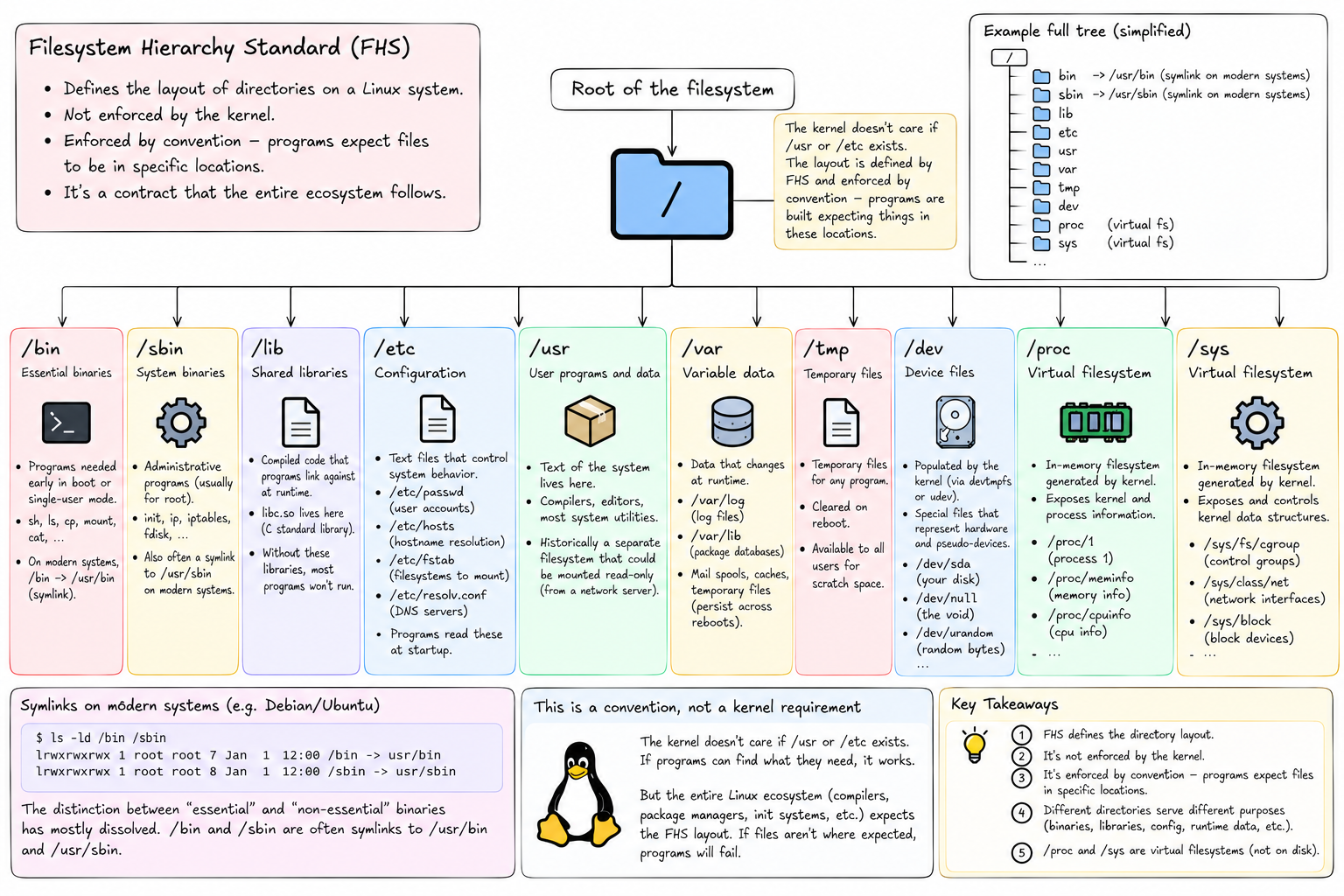
The Filesystem Hierarchy Standard — FHS — defines the layout. It's not enforced by the kernel. The kernel doesn't care if /usr exists. What enforces it is convention: programs are compiled expecting libraries in /lib, configuration in /etc, binaries in /bin. If those things aren't where expected, programs fail. The layout is a contract that the entire ecosystem has agreed to.
Here are the directories that matter:
/bin — essential binaries. The programs that need to be available early in boot or in single-user recovery mode: sh, ls, cp, mount, cat. On modern Debian/Ubuntu systems, /bin is actually a symlink to /usr/bin — the distinction between "essential" and "non-essential" binaries has mostly dissolved.
/sbin — system binaries. Programs intended for the superuser: init, ip, iptables, fdisk. Also often a symlink to /usr/sbin on modern systems.
/lib — shared libraries. The compiled code that programs link against at runtime. libc.so lives here — the C standard library that nearly every program depends on. Without it, almost nothing runs.
/etc — configuration. Text files that control system behavior: /etc/passwd (user accounts), /etc/hosts (hostname resolution), /etc/fstab (filesystems to mount at boot), /etc/resolv.conf (DNS servers). Programs read these files at startup to configure themselves.
/usr — user programs and data. Most of what you think of as "the system" lives here: compilers, editors, most system utilities. It was historically a separate filesystem that could be mounted read-only from a network server.
/var — variable data. Things that change at runtime: logs in /var/log, package manager databases in /var/lib, mail spools, temporary files that persist across reboots.
/tmp — temporary files. Cleared on reboot. Available to any program for scratch space.
/dev — device files. The kernel populates this (via devtmpfs or udev) with special files that represent hardware and pseudo-devices: /dev/sda for your disk, /dev/null for the void, /dev/urandom for random bytes.
/proc and /sys — virtual filesystems mounted by the kernel. Not on disk. As discussed in the last chapter.
A minimal rootfs — one that can actually run programs — needs maybe 200 MB. A bare Debian installation with no extra packages is around that. What it contains at that size:
- The C standard library and friends (
libc,libm,libpthread) - A shell (
/bin/sh, usuallydashon Debian) - Core utilities (
coreutils:ls,cp,mv,cat,echo, and about 80 others) - A package manager (
apt,dpkg) - Basic networking tools
/etcconfiguration files
That's enough to run shell scripts, install more packages, and execute programs. It's not enough to run a GUI or compile large projects, but it's a working Linux userspace.
How do you create one?
debootstrap is the standard tool. It's a shell script that downloads Debian or Ubuntu packages directly from an archive and unpacks them into a directory — no existing Debian system required. Run:
debootstrap --variant=minbase bookworm /some/directoryAnd ten minutes later, /some/directory contains a working Debian rootfs. --variant=minbase skips even more optional packages to keep it small. The result is a directory tree that you can chroot into and use like a real system.
This is exactly what tiny-aws does in builder.rs when you specify a base image. It calls debootstrap, gets a rootfs, and caches it by content hash at /var/lib/tinyaws/images/<hash>/. Every subsequent container built from the same base skips the download entirely.
The key insight is that a rootfs is just a directory.
There's nothing magic about it. It's not a disk image, not a virtual machine snapshot, not a special format. It's a regular directory with a specific layout that programs expect. You can ls it, cp files into it, edit files in it. The kernel doesn't know it's a "container filesystem" — it's just a directory tree that happens to be set as the root for some process.
When we do pivot_root later, we're telling the kernel: for this process, treat this directory as /. The kernel does it. Programs in that process open /etc/passwd and the kernel resolves the path relative to that directory. Everything works because the contract — the FHS layout — is honored.
Docker images are rootfs archives with some metadata. When Docker runs a container, it unpacks the image layers into a directory and pivot_roots into it. The image format is elaborate; the underlying mechanism is not.
Understanding what a rootfs is — and that it's just a directory — also explains why containers start fast.
A virtual machine has to boot a kernel. That takes seconds. A container doesn't boot a kernel. The host kernel is already running. Starting a container means: create some namespaces, set up a cgroup, arrange a directory tree, start a process. That takes milliseconds.
The rootfs is the directory tree part. It already exists on disk. Debootstrap ran once. The container just gets pointed at it.
Next we need to understand what that process actually is — how the kernel represents it, what it can and can't do, and what makes PID 1 different from every other process.